Playwright Accessibility Testing: Test States, Not Just Pages

Playwright Accessibility Testing: Test States, Not Just Pages

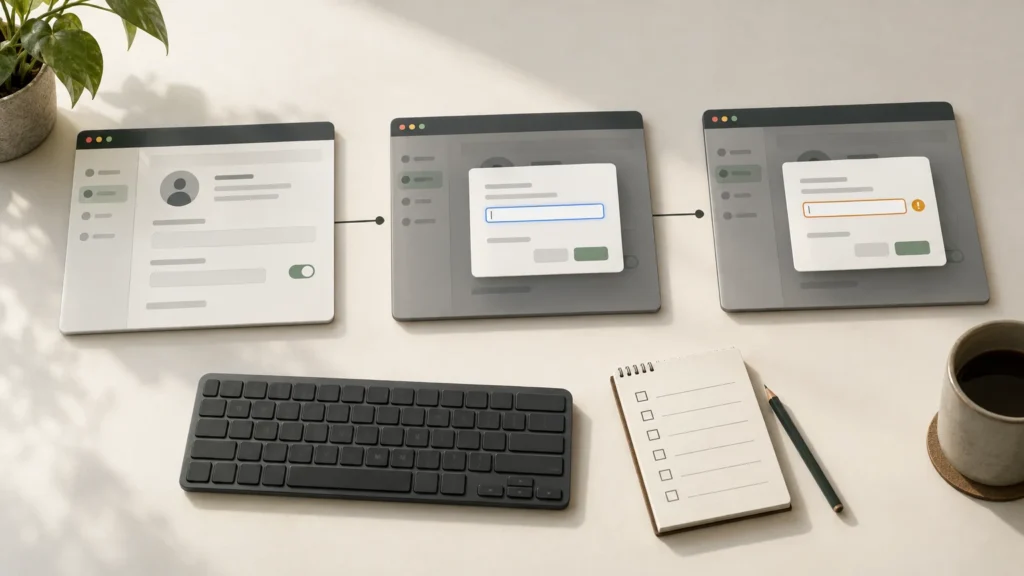
Playwright accessibility testing illustrated through an account page, an open dialog, and a validation-error state.
A clean page scan can miss the interface states customers actually use. Build a Playwright workflow that checks dialogs and errors, preserves evidence, and gives human accessibility evaluation a concrete handoff.
Share the Post:

Your release checks pass. The account page has no detected accessibility violations. Then a customer opens an email-editing dialog, encounters a validation error, and cannot work out where focus went or what needs correcting. The URL never changed, but the interface did.

Playwright accessibility testing becomes useful when the team treats those changes as testable states, not as incidental details inside a page scan. The practical job is to make each important state reachable, collect evidence at the right moment, and keep a separate record of the behavior that still needs human evaluation.

This guide builds that workflow around a small account-settings example. It is for QA leads, automation engineers, and frontend teams extending an existing Playwright suite. The goal is an actionable regression signal—not a badge claiming that the whole product is accessible.

What Playwright accessibility testing can—and cannot—prove

Playwright drives the browser. An integrated rules engine such as axe-core examines the rendered interface. Your own assertions check product behavior: whether a dialog opened, which control has focus, or whether an error appeared. Those are different sources of evidence, and a useful report keeps them separate.

A scan that reports no violations means no violations were reported by the rules that ran against the state that was scanned. It does not establish that every route, role, interaction, browser, or assistive technology works. W3C’s accessibility evaluation guidance makes the larger boundary explicit: tools alone cannot determine whether a site meets accessibility standards.

For example, an input can have a programmatic label while its instructions remain confusing. A validation message can exist in the document while a screen-reader user never receives a useful announcement. A correctly named button can be unreachable in the intended keyboard sequence. Each problem needs a check matched to the failure.

Avoid reporting a percentage of “accessibility coverage” from the number of passing rules. Rule counts are not a denominator for all user barriers or all applicable requirements. Instead, report the journeys and states exercised, the checks performed, the findings still open, and the parts not evaluated.

This distinction also protects purchasing decisions. If you need a conformance assessment or advice on legal obligations, define that separately with appropriately qualified reviewers. A regression suite supports that work; it does not replace it.

Start with a state inventory, not a list of URLs

Before expanding Playwright accessibility testing, choose one customer outcome. For the example, a signed-in customer needs to change an account email address. The initial page is only the starting point. Inventory the states that change what someone can perceive or operate:

  • Default account view: the current account details and the control that opens the editor are available.
  • Editor open: the dialog has a useful name, its controls are exposed, and initial focus follows the agreed interaction design.
  • Invalid submission: the error identifies the problem and is associated with the affected field.
  • Correction and successful save: the customer can recover, complete the task, and understand the result.
  • Cancellation: closing the dialog returns the customer to a sensible place without losing unrelated work.
  • Service failure: an unsuccessful save leaves an understandable recovery path rather than an unexplained spinner.

For each state, record the user role, starting data, action required to reach it, readiness assertion, scan scope, behavioral checks, and manual checks. A simple record might say: customer role; invalid email entered; Save activated; error message visible; full rendered page scanned; field marked invalid; announcement and recovery evaluated manually.

That record is the coverage contract for Playwright accessibility testing. It tells reviewers what a green result means and makes omissions visible. A test named “account is accessible” hides too much. A test named “email editor: default, open, and error states” makes a narrower, inspectable promise.

Prioritize states that can prevent completion of an important task, especially custom controls, validation, authentication, and destructive actions. TechAID’s risk-based testing playbook offers a broader way to prioritize release checks; here, the unit of attention is a user interaction and its changed interface.

Do not multiply every role by every viewport without considering what actually changes. If a role exposes different controls, or a narrow viewport replaces navigation with a drawer, that is a meaningful variation. Repeating the same unchanged state adds runtime without necessarily adding useful evidence.

Build a small, inspectable test

Make the setup assumptions explicit

Use an existing Playwright Test project with its application baseURL configured, an isolated signed-in test account if authentication is required, and predictable test data. Install @axe-core/playwright as a development dependency, commit the lockfile, and keep the package and browser versions reproducible in CI.

The Playwright accessibility testing example below expects an /account route with an Account heading and an Edit email button. The dialog must be named Edit email, contain an Email textbox and Save button, and display the stated error for invalid input. Its agreed behavior is to focus the email field on opening and restore focus to the opener after Escape. Adapt those expectations to your product rather than changing the product merely to satisfy this sample.

The official Playwright accessibility guide documents the integration and explains that scans inspect the current page state. Our example adds explicit state assertions and named evidence attachments around that mechanism.

import { test, expect, type Page, type TestInfo } from ‘@playwright/test’;

import AxeBuilder from ‘@axe-core/playwright’;

async function scanState(page: Page, info: TestInfo, state: string) {

const results = await new AxeBuilder({ page }).analyze();

await info.attach(`a11y-${state}`, {

body: JSON.stringify(results, null, 2),

contentType: ‘application/json’

});

expect.soft(results.violations, state).toEqual([]);

}

test(’email editor: default, open, and error states’, async ({ page }, info) => {

await page.goto(‘/account’);

await expect(page.getByRole(‘heading’, { name: ‘Account’, exact: true }))

.toBeVisible();

await scanState(page, info, ‘account-default’);

const opener = page.getByRole(‘button’, { name: ‘Edit email’, exact: true });

await opener.focus();

await page.keyboard.press(‘Enter’);

const dialog = page.getByRole(‘dialog’, { name: ‘Edit email’, exact: true });

const email = dialog.getByRole(‘textbox’, { name: ‘Email’, exact: true });

await expect(dialog).toBeVisible();

await expect(email).toBeFocused();

await scanState(page, info, ’email-open’);

await email.fill(‘not-an-address’);

await dialog.getByRole(‘button’, { name: ‘Save’, exact: true }).click();

await expect(dialog.getByRole(‘alert’)).toHaveText(‘Enter a valid email address’);

await expect(email).toHaveAttribute(‘aria-invalid’, ‘true’);

await scanState(page, info, ’email-error’);

await page.keyboard.press(‘Escape’);

await expect(dialog).toBeHidden();

await expect(opener).toBeFocused();

});

Understand what the example deliberately leaves out

This Playwright accessibility testing example runs three scans: default, open, and error. The helper attaches each complete result before asserting on violations, so a failed check retains diagnostic information. Playwright’s attachment API supports keeping that evidence with the test result instead of losing it in an unstructured console log.

The soft assertion lets later states run after a scan finds a violation; it still makes the test fail. Readiness and behavioral assertions remain hard failures. If the dialog never opens, the test stops rather than pretending to have scanned it. Neither a missing result nor a skipped test should be displayed as a clean scan.

The helper uses the engine’s default rules. If your organization selects a narrower ruleset, record that choice and its purpose. Do not label a filtered scan as an exhaustive standards assessment. Keep a broader regression run where useful, and review rule or version changes before accepting a new baseline.

Playwright accessibility testing also needs observable readiness. Waiting a fixed number of seconds can scan a loading shell on a slow run or waste time on a fast one. Use the expected heading, dialog, error text, or loaded content as a condition. Playwright’s web assertions retry until their condition is met or their timeout expires.

The sample is not a complete account-change test. It does not save a valid address, exercise a failed backend request, or verify every Tab movement. Those are separate states or behaviors from the inventory. Keeping that limitation visible is more useful than naming one short test “complete coverage.”

Add keyboard behavior without overstating it

The example explicitly focuses the opener and presses Enter. That isolates keyboard activation; it does not prove that a user can reach the opener by tabbing from the start of the page. Likewise, clicking Save reaches the error state but does not establish that the entire edit-and-save journey works without a pointer.

Add keyboard accessibility testing for the actual navigation path. Start at a defined entry point, move through the controls in the intended sequence, activate the editor, correct an error, and finish or cancel. Check visible focus as well as the focused element. A DOM assertion alone cannot tell you whether the indicator is obscured by a sticky header.

W3C’s keyboard guidance explains why functionality must be operable through a keyboard interface, subject to its stated exception for path-dependent input. Use that requirement to select meaningful task checks, rather than counting keypresses as an accessibility score.

For a modal dialog, W3C’s dialog pattern describes focus moving inside, Tab and Shift+Tab remaining within the dialog, Escape closing it, and a logical focus destination afterward. Initial focus is contextual: a long explanatory dialog or a destructive action may call for a different starting element from this email editor.

Translate the agreed design into assertions, then inspect the experience manually. Do not use a single expected Tab count as a substitute for understanding the task. When a legitimate control is added, review the interaction sequence; do not automatically update the count to make CI pass.

Prove that the suite detects a broken state

Before trusting Playwright accessibility testing as a release signal, deliberately introduce a defect in a disposable test fixture or local branch. Choose a defect that exists only after an interaction—for example, an unnamed button that appears with an error message.

Run the original default-page scan first, then the state-aware test. The useful result is not simply “the test failed.” Confirm that the default state remains clean, the error state reports the new button, and the stored artifact identifies the affected element. This demonstrates why the additional state matters.

Next, break a behavioral expectation without necessarily changing scan results. Remove the intended focus restoration after the dialog closes. The focus assertion should fail even if the rules engine finds nothing. Together, these checks establish that the suite has independent signals for markup issues and interaction behavior.

For this guide, the example was exercised against synthetic local HTML: the working fixture passed, and an unnamed button introduced only in the error state was detected. That is a check of the example, not evidence about any production application. Repeat the exercise against your own implementation and supported environments.

Remove the deliberate defects after verification. Keep a small harness self-test if it helps detect a disabled scanner or a broken result parser during dependency upgrades. Never introduce such defects into a live customer workflow.

Make failures actionable in CI

Separate a scan failure from an application violation

A timeout, expired session, inaccessible fixture, or scanner exception is not an accessibility finding. It is a failure to obtain evidence. Report that separately from detected violations and from failures in your behavioral assertions. Otherwise the team cannot tell whether to fix the application, the setup, or the test.

For each Playwright accessibility testing run, attach the state name, commit, browser, viewport, package versions, and relevant result file. Use synthetic data where possible. Reports and traces can contain interface text, selectors, URLs, and account details, so apply your normal access and retention controls before sharing them outside the delivery team.

Review results that require human investigation, not only the violations array. A report can contain unresolved checks even when the automatic violation count is zero. Assign those items for review; do not silently transform “could not determine” into “passed.”

For accessibility testing in CI/CD, use two complementary execution scopes. Run a small, stable set of changed-component and critical-journey checks close to the pull request. Run a broader set of roles, interaction states, and supported configurations on an appropriate integration or release cadence. Choose the cadence from risk and runtime, not from an arbitrary target number of tests.

This fits within a wider QA automation strategy: reliable data, understandable failures, and clear ownership matter as much as the choice of framework. The accessibility-specific addition is a state inventory and a human-evaluation queue that remain visible alongside automated results.

Keep exceptions narrow, visible, and temporary

An established application may already have findings. Do not respond by excluding a large container or disabling a rule across the entire product. That can hide future regressions in the same area. Preserve the complete report and separate known, reviewed findings from newly introduced ones.

If an exception is necessary, record the rule, affected component and state, customer impact, owner, remediation issue, approval, and review date. Match it narrowly enough that a similar defect somewhere else still fails. Review exceptions when the component changes, not only when a calendar reminder arrives.

Do not approve a finding solely because the scanner labels its impact as low, or suppress every finding below a chosen severity. The task context matters: a seemingly small problem can obstruct a critical workflow. Your release policy should consider customer impact, available alternatives, and evidence from human testing.

A useful Playwright accessibility testing gate therefore has three visible outcomes: checks completed within the stated scope; actionable findings; or incomplete evidence. It should also disclose approved exceptions. “Green with no explanation” is not a sufficient release record.

Give human evaluation a concrete handoff

Automated accessibility testing is most useful when it reduces repetitive checking and makes the remaining evaluation work explicit. For the email editor, hand a reviewer the exact build, route, role, starting data, state sequence, and automated findings—not just a screenshot with “please check accessibility.”

Ask the reviewer to complete the task with the agreed browser and assistive-technology combinations. Can they identify the dialog’s purpose, understand the error, find the affected field, correct it, and recognize the outcome? Record the actual configuration and the observed behavior. An assertion that an alert exists is not a recording of what a screen reader announced.

Include other relevant access needs: zoom and reflow, pointer operation, touch, and instructions that do not rely only on visual position or color. A keyboard pass is not a universal substitute. Where the product’s risk warrants it, involve people with disabilities in evaluating realistic tasks.

Keep the human-review handoff from Playwright accessibility testing small enough to execute during delivery. For each finding, capture reproduction steps, the blocked or difficult task, expected behavior, evidence, ownership, and a retest result. Fixes to a shared component should trigger checks of the other journeys that use it.

Do not describe the feature as fully evaluated if a planned combination or state was skipped. Say what was tested, what remains unknown, and who decides whether that uncertainty is acceptable. Playwright accessibility testing supplies part of that evidence, not the entire decision.

Add capacity where the workflow is breaking

A team may know what to test but lack the time to maintain fixtures, expand state coverage, investigate failures, and retest fixes. That is a delivery-capacity problem. It is different from lacking a qualified accessibility reviewer or lacking an agreed product requirement.

For ongoing work inside an existing engineering organization, nearshore staff augmentation can add QA automation capacity under the client’s management. Keep product priorities, release decisions, and accessibility requirements with named owners. Validate any specialized accessibility experience during selection rather than assuming every automation engineer has it.

TechAID’s Verndale case describes QA leadership, automation adoption, and flexible team capacity. It supports a conversation about embedded QA delivery; it should not be read as proof of a particular accessibility certification or conformance outcome.

Bring one critical journey, its state inventory, your current Playwright suite, and the findings nobody has time to resolve. Discuss with TechAID whether an embedded QA automation professional fits that workload. The first useful outcome is a maintained, reviewable workflow—not a promise that another tool will make every user barrier disappear.


Key Takeaways
  • Treat interface states—such as open dialogs and validation errors—as distinct accessibility test targets, not just pages or URLs.

  • Combine axe-core scans with explicit Playwright assertions for readiness, focus, errors, and recovery behavior.

  • Attach scan results for each state so failures retain useful diagnostic evidence.

  • Document the journeys and checks covered, along with limitations; automated scans do not establish full accessibility conformance.

  • Use meaningful readiness conditions and risk-based state selection instead of fixed waits or redundant test combinations.

  • Your release checks pass. The account page has no detected accessibility violations. Then a customer opens an email-editing dialog, encounters a validation error, and cannot work out where focus went or what needs correcting. The URL never changed, but the interface did.

    Playwright accessibility testing becomes useful when the team treats those changes as testable states, not as incidental details inside a page scan. The practical job is to make each important state reachable, collect evidence at the right moment, and keep a separate record of the behavior that still needs human evaluation.

    This guide builds that workflow around a small account-settings example. It is for QA leads, automation engineers, and frontend teams extending an existing Playwright suite. The goal is an actionable regression signal—not a badge claiming that the whole product is accessible.

    What Playwright accessibility testing can—and cannot—prove

    Playwright drives the browser. An integrated rules engine such as axe-core examines the rendered interface. Your own assertions check product behavior: whether a dialog opened, which control has focus, or whether an error appeared. Those are different sources of evidence, and a useful report keeps them separate.

    A scan that reports no violations means no violations were reported by the rules that ran against the state that was scanned. It does not establish that every route, role, interaction, browser, or assistive technology works. W3C’s accessibility evaluation guidance makes the larger boundary explicit: tools alone cannot determine whether a site meets accessibility standards.

    For example, an input can have a programmatic label while its instructions remain confusing. A validation message can exist in the document while a screen-reader user never receives a useful announcement. A correctly named button can be unreachable in the intended keyboard sequence. Each problem needs a check matched to the failure.

    Avoid reporting a percentage of “accessibility coverage” from the number of passing rules. Rule counts are not a denominator for all user barriers or all applicable requirements. Instead, report the journeys and states exercised, the checks performed, the findings still open, and the parts not evaluated.

    This distinction also protects purchasing decisions. If you need a conformance assessment or advice on legal obligations, define that separately with appropriately qualified reviewers. A regression suite supports that work; it does not replace it.

    Start with a state inventory, not a list of URLs

    Before expanding Playwright accessibility testing, choose one customer outcome. For the example, a signed-in customer needs to change an account email address. The initial page is only the starting point. Inventory the states that change what someone can perceive or operate:

    • Default account view: the current account details and the control that opens the editor are available.
    • Editor open: the dialog has a useful name, its controls are exposed, and initial focus follows the agreed interaction design.
    • Invalid submission: the error identifies the problem and is associated with the affected field.
    • Correction and successful save: the customer can recover, complete the task, and understand the result.
    • Cancellation: closing the dialog returns the customer to a sensible place without losing unrelated work.
    • Service failure: an unsuccessful save leaves an understandable recovery path rather than an unexplained spinner.

    For each state, record the user role, starting data, action required to reach it, readiness assertion, scan scope, behavioral checks, and manual checks. A simple record might say: customer role; invalid email entered; Save activated; error message visible; full rendered page scanned; field marked invalid; announcement and recovery evaluated manually.

    That record is the coverage contract for Playwright accessibility testing. It tells reviewers what a green result means and makes omissions visible. A test named “account is accessible” hides too much. A test named “email editor: default, open, and error states” makes a narrower, inspectable promise.

    Prioritize states that can prevent completion of an important task, especially custom controls, validation, authentication, and destructive actions. TechAID’s risk-based testing playbook offers a broader way to prioritize release checks; here, the unit of attention is a user interaction and its changed interface.

    Do not multiply every role by every viewport without considering what actually changes. If a role exposes different controls, or a narrow viewport replaces navigation with a drawer, that is a meaningful variation. Repeating the same unchanged state adds runtime without necessarily adding useful evidence.

    Build a small, inspectable test

    Make the setup assumptions explicit

    Use an existing Playwright Test project with its application baseURL configured, an isolated signed-in test account if authentication is required, and predictable test data. Install @axe-core/playwright as a development dependency, commit the lockfile, and keep the package and browser versions reproducible in CI.

    The Playwright accessibility testing example below expects an /account route with an Account heading and an Edit email button. The dialog must be named Edit email, contain an Email textbox and Save button, and display the stated error for invalid input. Its agreed behavior is to focus the email field on opening and restore focus to the opener after Escape. Adapt those expectations to your product rather than changing the product merely to satisfy this sample.

    The official Playwright accessibility guide documents the integration and explains that scans inspect the current page state. Our example adds explicit state assertions and named evidence attachments around that mechanism.

    import { test, expect, type Page, type TestInfo } from ‘@playwright/test’;

    import AxeBuilder from ‘@axe-core/playwright’;

    async function scanState(page: Page, info: TestInfo, state: string) {

    const results = await new AxeBuilder({ page }).analyze();

    await info.attach(`a11y-${state}`, {

    body: JSON.stringify(results, null, 2),

    contentType: ‘application/json’

    });

    expect.soft(results.violations, state).toEqual([]);

    }

    test(’email editor: default, open, and error states’, async ({ page }, info) => {

    await page.goto(‘/account’);

    await expect(page.getByRole(‘heading’, { name: ‘Account’, exact: true }))

    .toBeVisible();

    await scanState(page, info, ‘account-default’);

    const opener = page.getByRole(‘button’, { name: ‘Edit email’, exact: true });

    await opener.focus();

    await page.keyboard.press(‘Enter’);

    const dialog = page.getByRole(‘dialog’, { name: ‘Edit email’, exact: true });

    const email = dialog.getByRole(‘textbox’, { name: ‘Email’, exact: true });

    await expect(dialog).toBeVisible();

    await expect(email).toBeFocused();

    await scanState(page, info, ’email-open’);

    await email.fill(‘not-an-address’);

    await dialog.getByRole(‘button’, { name: ‘Save’, exact: true }).click();

    await expect(dialog.getByRole(‘alert’)).toHaveText(‘Enter a valid email address’);

    await expect(email).toHaveAttribute(‘aria-invalid’, ‘true’);

    await scanState(page, info, ’email-error’);

    await page.keyboard.press(‘Escape’);

    await expect(dialog).toBeHidden();

    await expect(opener).toBeFocused();

    });

    Understand what the example deliberately leaves out

    This Playwright accessibility testing example runs three scans: default, open, and error. The helper attaches each complete result before asserting on violations, so a failed check retains diagnostic information. Playwright’s attachment API supports keeping that evidence with the test result instead of losing it in an unstructured console log.

    The soft assertion lets later states run after a scan finds a violation; it still makes the test fail. Readiness and behavioral assertions remain hard failures. If the dialog never opens, the test stops rather than pretending to have scanned it. Neither a missing result nor a skipped test should be displayed as a clean scan.

    The helper uses the engine’s default rules. If your organization selects a narrower ruleset, record that choice and its purpose. Do not label a filtered scan as an exhaustive standards assessment. Keep a broader regression run where useful, and review rule or version changes before accepting a new baseline.

    Playwright accessibility testing also needs observable readiness. Waiting a fixed number of seconds can scan a loading shell on a slow run or waste time on a fast one. Use the expected heading, dialog, error text, or loaded content as a condition. Playwright’s web assertions retry until their condition is met or their timeout expires.

    The sample is not a complete account-change test. It does not save a valid address, exercise a failed backend request, or verify every Tab movement. Those are separate states or behaviors from the inventory. Keeping that limitation visible is more useful than naming one short test “complete coverage.”

    Add keyboard behavior without overstating it

    The example explicitly focuses the opener and presses Enter. That isolates keyboard activation; it does not prove that a user can reach the opener by tabbing from the start of the page. Likewise, clicking Save reaches the error state but does not establish that the entire edit-and-save journey works without a pointer.

    Add keyboard accessibility testing for the actual navigation path. Start at a defined entry point, move through the controls in the intended sequence, activate the editor, correct an error, and finish or cancel. Check visible focus as well as the focused element. A DOM assertion alone cannot tell you whether the indicator is obscured by a sticky header.

    W3C’s keyboard guidance explains why functionality must be operable through a keyboard interface, subject to its stated exception for path-dependent input. Use that requirement to select meaningful task checks, rather than counting keypresses as an accessibility score.

    For a modal dialog, W3C’s dialog pattern describes focus moving inside, Tab and Shift+Tab remaining within the dialog, Escape closing it, and a logical focus destination afterward. Initial focus is contextual: a long explanatory dialog or a destructive action may call for a different starting element from this email editor.

    Translate the agreed design into assertions, then inspect the experience manually. Do not use a single expected Tab count as a substitute for understanding the task. When a legitimate control is added, review the interaction sequence; do not automatically update the count to make CI pass.

    Prove that the suite detects a broken state

    Before trusting Playwright accessibility testing as a release signal, deliberately introduce a defect in a disposable test fixture or local branch. Choose a defect that exists only after an interaction—for example, an unnamed button that appears with an error message.

    Run the original default-page scan first, then the state-aware test. The useful result is not simply “the test failed.” Confirm that the default state remains clean, the error state reports the new button, and the stored artifact identifies the affected element. This demonstrates why the additional state matters.

    Next, break a behavioral expectation without necessarily changing scan results. Remove the intended focus restoration after the dialog closes. The focus assertion should fail even if the rules engine finds nothing. Together, these checks establish that the suite has independent signals for markup issues and interaction behavior.

    For this guide, the example was exercised against synthetic local HTML: the working fixture passed, and an unnamed button introduced only in the error state was detected. That is a check of the example, not evidence about any production application. Repeat the exercise against your own implementation and supported environments.

    Remove the deliberate defects after verification. Keep a small harness self-test if it helps detect a disabled scanner or a broken result parser during dependency upgrades. Never introduce such defects into a live customer workflow.

    Make failures actionable in CI

    Separate a scan failure from an application violation

    A timeout, expired session, inaccessible fixture, or scanner exception is not an accessibility finding. It is a failure to obtain evidence. Report that separately from detected violations and from failures in your behavioral assertions. Otherwise the team cannot tell whether to fix the application, the setup, or the test.

    For each Playwright accessibility testing run, attach the state name, commit, browser, viewport, package versions, and relevant result file. Use synthetic data where possible. Reports and traces can contain interface text, selectors, URLs, and account details, so apply your normal access and retention controls before sharing them outside the delivery team.

    Review results that require human investigation, not only the violations array. A report can contain unresolved checks even when the automatic violation count is zero. Assign those items for review; do not silently transform “could not determine” into “passed.”

    For accessibility testing in CI/CD, use two complementary execution scopes. Run a small, stable set of changed-component and critical-journey checks close to the pull request. Run a broader set of roles, interaction states, and supported configurations on an appropriate integration or release cadence. Choose the cadence from risk and runtime, not from an arbitrary target number of tests.

    This fits within a wider QA automation strategy: reliable data, understandable failures, and clear ownership matter as much as the choice of framework. The accessibility-specific addition is a state inventory and a human-evaluation queue that remain visible alongside automated results.

    Keep exceptions narrow, visible, and temporary

    An established application may already have findings. Do not respond by excluding a large container or disabling a rule across the entire product. That can hide future regressions in the same area. Preserve the complete report and separate known, reviewed findings from newly introduced ones.

    If an exception is necessary, record the rule, affected component and state, customer impact, owner, remediation issue, approval, and review date. Match it narrowly enough that a similar defect somewhere else still fails. Review exceptions when the component changes, not only when a calendar reminder arrives.

    Do not approve a finding solely because the scanner labels its impact as low, or suppress every finding below a chosen severity. The task context matters: a seemingly small problem can obstruct a critical workflow. Your release policy should consider customer impact, available alternatives, and evidence from human testing.

    A useful Playwright accessibility testing gate therefore has three visible outcomes: checks completed within the stated scope; actionable findings; or incomplete evidence. It should also disclose approved exceptions. “Green with no explanation” is not a sufficient release record.

    Give human evaluation a concrete handoff

    Automated accessibility testing is most useful when it reduces repetitive checking and makes the remaining evaluation work explicit. For the email editor, hand a reviewer the exact build, route, role, starting data, state sequence, and automated findings—not just a screenshot with “please check accessibility.”

    Ask the reviewer to complete the task with the agreed browser and assistive-technology combinations. Can they identify the dialog’s purpose, understand the error, find the affected field, correct it, and recognize the outcome? Record the actual configuration and the observed behavior. An assertion that an alert exists is not a recording of what a screen reader announced.

    Include other relevant access needs: zoom and reflow, pointer operation, touch, and instructions that do not rely only on visual position or color. A keyboard pass is not a universal substitute. Where the product’s risk warrants it, involve people with disabilities in evaluating realistic tasks.

    Keep the human-review handoff from Playwright accessibility testing small enough to execute during delivery. For each finding, capture reproduction steps, the blocked or difficult task, expected behavior, evidence, ownership, and a retest result. Fixes to a shared component should trigger checks of the other journeys that use it.

    Do not describe the feature as fully evaluated if a planned combination or state was skipped. Say what was tested, what remains unknown, and who decides whether that uncertainty is acceptable. Playwright accessibility testing supplies part of that evidence, not the entire decision.

    Add capacity where the workflow is breaking

    A team may know what to test but lack the time to maintain fixtures, expand state coverage, investigate failures, and retest fixes. That is a delivery-capacity problem. It is different from lacking a qualified accessibility reviewer or lacking an agreed product requirement.

    For ongoing work inside an existing engineering organization, nearshore staff augmentation can add QA automation capacity under the client’s management. Keep product priorities, release decisions, and accessibility requirements with named owners. Validate any specialized accessibility experience during selection rather than assuming every automation engineer has it.

    TechAID’s Verndale case describes QA leadership, automation adoption, and flexible team capacity. It supports a conversation about embedded QA delivery; it should not be read as proof of a particular accessibility certification or conformance outcome.

    Bring one critical journey, its state inventory, your current Playwright suite, and the findings nobody has time to resolve. Discuss with TechAID whether an embedded QA automation professional fits that workload. The first useful outcome is a maintained, reviewable workflow—not a promise that another tool will make every user barrier disappear.

    Related Posts